Posts

Showing posts from November, 2024

Best AI Chatbot for Customer Service in 2026 Free Options, Pricing and Real Risks

Image
Screens: Tidio, HubSpot, Intercom and Freshworks official pages I have worked in IT for about twenty years, and when a small shop owner asks me about an AI chatbot for customer service, I ask one thing first: what are the five questions your customers ask most? If you cannot list them, no tool will fix that. This guide follows the searches people run next on Google (best chatbot, free options, examples, the phone number question, and what regulators and courts say) and gives a plain answer for each, based on the vendors' own pricing pages and a few dated sources I read on October 25, 2026. Quick answer Smallest budget, fastest start: Tidio lists a free plan, and its first 50 Lyro AI conversations are free (lifetime) on its pricing page. You already use a CRM: HubSpot chatbot builder is described as free and syncs with the HubSpot CRM. You pay only when the bot succeeds: Intercom Fin lists $0.99 per outcome, and says you pay nothing if Fin cannot answer or the customer asks fo...
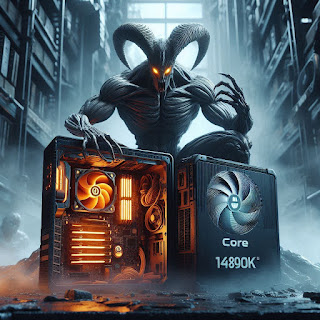
Core Ultra 9 285K vs Core i9-14900K for Gaming in 2026: What the 200S Plus Refresh Changed

Image
Quick answer In 2026 the better Intel buy is usually the Core Ultra 7 270K Plus, not the 285K or the 14900K. Back2Gaming found it essentially matches the 285K in productivity for about $290 less. For pure gaming, AMD’s X3D chips still lead. Back2Gaming reports the Ryzen 7 9800X3D wins by 20 to 50 percent in some titles. At 4K, the graphics card is usually the limit and CPU differences shrink to about 5 to 10 percent . When Intel’s Core Ultra 200S launched in 2024, early tests showed it trailing the Core i9-14900K in many games, and a comparison between them was popular. Two years later the situation has changed. Intel released the Core Ultra 200S Plus refresh in March 2026, the 14900K sits on a dead-end socket, and AMD’s X3D chips set the gaming bar. This guide explains where each chip fits now. 1. What Changed in 2026 Intel unveiled the Core Ultra 200S Plus series on March 11, 2026, led by the Core Ultra 7 270K Plus and Core Ultra 5 250K Plus. Intel says these are its fastest d...

Best USB-C Adapters and Hubs for iPad (10th Gen and Base iPad): 2026 Guide

Image
Quick answer The USB-C port on the iPad (10th generation) and the current base iPad (A16) runs at USB 2.0 speed, 480 Mbps . A hub cannot make it faster. Pick a hub for the ports you need (HDMI, SD card, Ethernet, charging), not for speed. A 5 Gbps or 10 Gbps hub still works, it just runs at the iPad’s limit. For a flash drive or keyboard, a simple USB-C to USB-A adapter is enough. For desk setups, choose a hub with power pass-through so the iPad charges while you work. If you bought the iPad 10th generation (2022) or the current base iPad, you probably noticed it has a USB-C port but almost no accessories in the box. The right adapter depends on what you plug in: a flash drive, a camera card , a keyboard, a monitor, or all of them at once. This guide explains what the port can and cannot do, which type of adapter fits each job, and what to check before you buy. 1. Know Your iPad’s Port Speed First Not every iPad with USB-C is equal. MacRumors reported when the 10th generation...

How to Connect Two or More Monitors to an M1 MacBook: DisplayLink Dock Guide (2026)

Image
Quick answer A standard M1 or M2 MacBook (and the MacBook Neo) natively supports only one external monitor. M1 Pro supports two, and M1 Max supports four. To add more screens on a base M1, you need a DisplayLink or InstantView dock plus a free driver. A simple HDMI splitter will not give you separate screens. The trade-offs are a 60Hz refresh cap, a small amount of latency, and no HDCP-protected streaming on those extra screens. You bought an M1 MacBook, plugged in a second monitor, and found that macOS will not let you extend to both. That is not a setting you missed. It is a hardware limit of the base chip. The good news is that a USB graphics dock can work around it. This guide explains which MacBooks have the limit, how the workaround works, which docks Macworld tested, and what you give up. 1. How Many Monitors Your MacBook Supports Macworld explains that Apple’s lower-end MacBooks with a standard M1 or M2 chip cannot natively connect more than one external monitor. The M...

iPhone Battery Percentage Wrong or Jumping? How to Check Battery Health and Fix It (2026)

Image
Quick answer Check Settings, Battery, Battery Health & Charging first. If maximum capacity is low or a service message appears, the battery is aging, not just misreporting. iPhone batteries cannot be calibrated by the user. Restart, update iOS, and give the phone a few normal charge cycles before you assume a fault. If the percentage keeps jumping, drops to 1 percent and recovers, or the phone shuts down, book a battery check with Apple or an Apple Authorized Service Provider. Your iPhone says 40 percent , then 15, then 38. Or it will not stay at one number while charging. Before you replace anything, it helps to know what is normal and what is not. This guide explains what Apple says about battery health, what you can safely try yourself, and when the symptoms point to a battery that needs service. 1. Check Battery Health First Open Settings, then tap Battery. Tap Battery Health or Battery Health & Charging. Look at Maximum Capacity. It measures the battery capacity comp...

Windows 11 Audio Output Not Switching? How to Fix Sound Device and AudioSwitcher Problems (2026)

Image
Quick answer Start with the built-in switch: Settings, System, Sound, or the sound icon in Quick Settings. If it works there, the problem is the third-party tool, not Windows. If Windows itself cannot switch devices, restart the Windows Audio services, run the Audio troubleshooter, and update or reinstall the audio driver. If a third-party switcher such as AudioSwitcher will not open or respond, close it in Task Manager, run it as administrator, and reinstall the latest version as a last step. You press your audio shortcut and nothing happens, the speaker list is empty, or the switcher app will not open. In Windows 11 the cause is usually a stopped audio service, a driver problem, or a third-party utility that lost permissions after an update. This guide goes from the quickest checks to the deeper fixes, and it does not ask you to edit the registry. 1. Switch Audio Devices the Built-In Way Click the sound icon at the right of the taskbar and use the arrow next to the volume slider...

AirPods Won’t Connect? How to Fix Pairing, One Side Not Working and Charging Problems (2026)

Image
Quick answer Update your iPhone, iPad, or Mac, put both AirPods in the case, and check that Bluetooth is on and the AirPods are charging. If they do not appear, close the lid, wait 15 seconds, open it, and press or double-tap to start pairing until the light flashes white. If that fails, reset the AirPods with Apple’s reset steps, then pair again. AirPods usually connect on their own, so it is frustrating when they do not show up, only one side works, or the case will not charge. Apple lists a clear order of steps that fixes most problems. This guide follows that order, explains how pairing differs by model, and covers what to do about one-sided sound and charging. 1. Start With the Basics Update your iPhone or iPad to the latest iOS or iPadOS, or your Mac to the latest macOS. Put both AirPods in the charging case and make sure both are charging. Check that Bluetooth is on: Settings, Bluetooth on iPhone or iPad, or System Settings, Bluetooth on Mac. Take the AirPods out of the cas...

How to Remove Windows 11 Ads, Pop-ups and Distractions: 9 Settings to Change (2026)

Image
Quick answer Most Windows 11 prompts come from nine places: Start menu suggestions, notification tips, Settings suggestions, File Explorer, the widget feed, manufacturer apps, the lock screen, search highlights, and personalized ads. Each one has an off switch in Settings. Plan on about 15 minutes. Use Focus and Do not disturb for notifications from apps you do want, instead of turning everything off. If Windows 11 keeps nudging you to finish setup, try a Microsoft service, or buy something, you are not imagining it. PCWorld counted nine places where Windows shows promotions or suggestions and showed how to switch off the worst of them. This guide walks through each one with the Settings path to use. You do not need any extra software. 1. Start Menu and Lock Screen Start menu: Settings, Personalization, Start. Turn off Show recommendations for tips, app promotions and more (wording varies). Lock screen: Settings, Personalization, Lock screen. Set Personalize your lock screen to Pi...